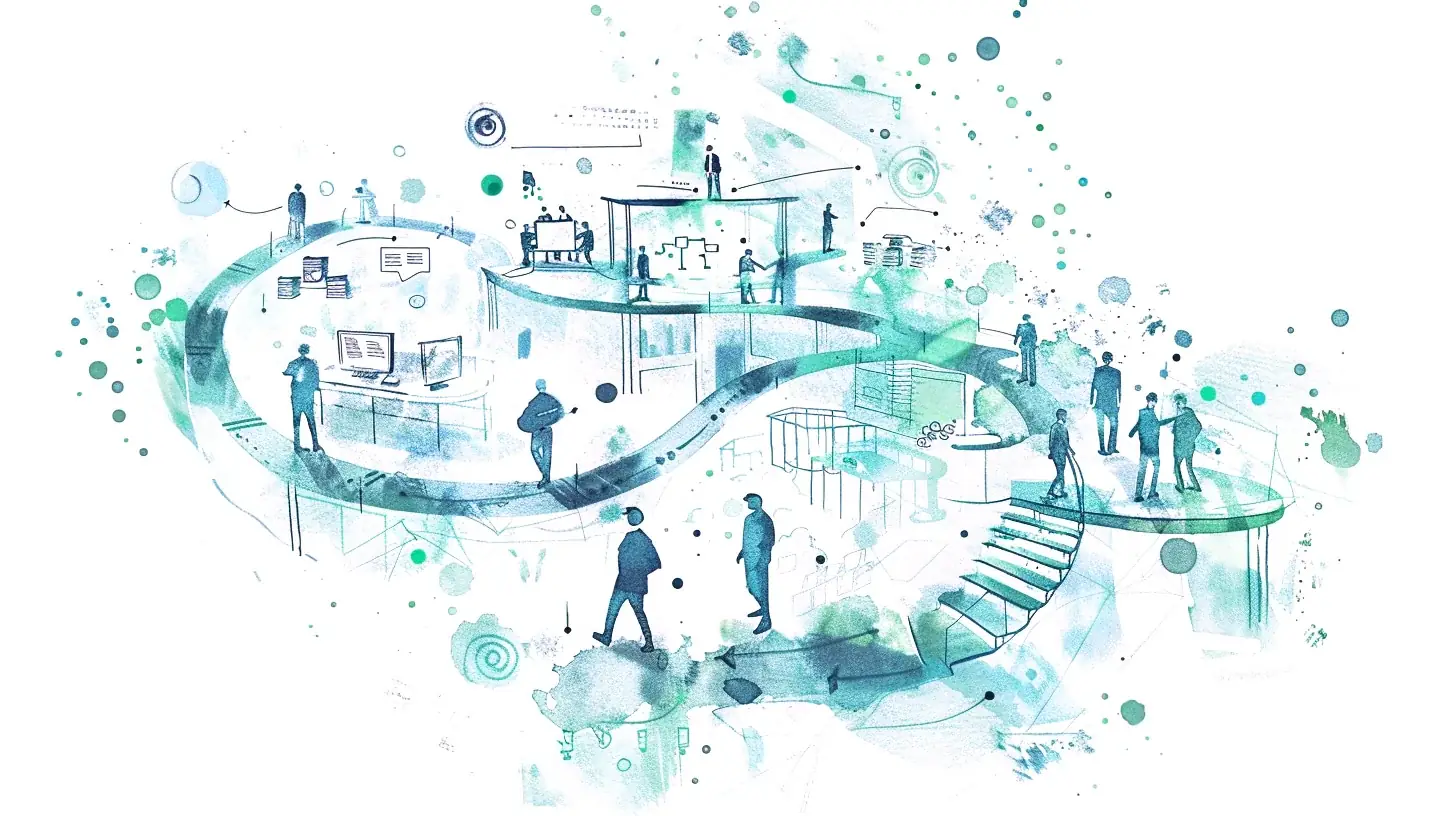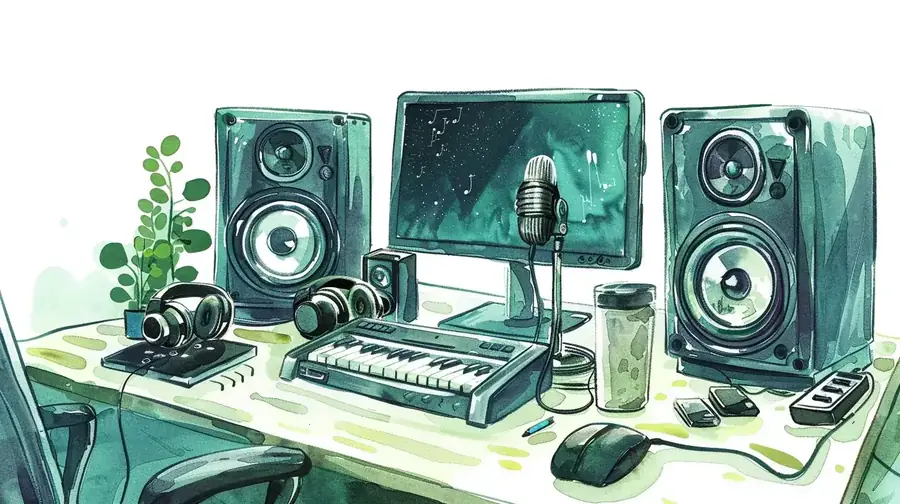
Thoughtfully designed audio — from UI sound effects to voice-over narration and ambient music — transforms eLearning from a flat reading experience into an immersive one that improves engagement and retention.
Starting the project: analyzing and selecting key elements for sound feedback
Audio in eLearning creates an immersive and interactive learning environment, making the content more engaging and improving retention rates.
Analyzing the slides
Review your course slides to identify opportunities where eLearning audio can enhance the learning experience:
- Content complexity: Complex concepts may benefit from explanatory voice over
- User interactions: Identify where UI audio can make interactions more intuitive
- Visual elements: Assess animations where synchronized sound can add impact
- Feedback mechanisms: Use sound to provide immediate feedback for correct/incorrect answers
- Atmosphere and mood: Background music or ambient sounds to create an immersive environment
Key elements for sound feedback
- Interactive buttons: Click or press sounds make interactions more intuitive
- Transitions: Smooth sound effects enhance flow between slides
- Correct/incorrect answers: Distinct sounds provide immediate feedback
- Notifications: Alerts emphasized with sound cues
- Animations: Sounds synchronized with animations make them more impactful
- Narration: Professional voice-over narration guides learners through material
- Ambient sounds: Background music or ambient sounds set the tone
Gathering input: discussing timbre and quality with stakeholders
Ask project owners and stakeholders for references to projects and sounds they like. Discuss:
- Professional vs. Casual: Polished or relaxed sound design
- Subtle vs. Bold: Understated or attention-grabbing audio
- Natural vs. Synthetic: Preference for natural or synthesized sounds
- Background Music: Calm and soothing, or upbeat and energetic
- Sound Effects: Realistic and natural, or stylized and digital
Sound sourcing: exploring different possibilities
UI Sounds Packs
- SND: Free sound assets crafted for UX developers
- Pixabay: Royalty-free interface sound effects
- UI Sounds: 105 interaction sounds in Full and Low volume
- MusicMaker: High-quality digital resources for sound
Sound Effects Libraries
- FreeSound: Collaborative database of Creative Commons-licensed sound effects
- Zapsplat: Over 90,000 free sound effects
- BBC Sound Effects: Professional recordings covering a wide range of topics
- Material Design UI Sounds: Sound files for alerts and notifications
- AudioJungle: High-quality royalty-free sounds (paid)
Pricing note
AudioJungle operates on a per-asset purchase model. Splice and Artlist require ongoing subscriptions. Verify current licensing terms before using audio commercially.
Audio Subscriptions
- Splice: Subscription-based high-quality, royalty-free sounds
- Artlist: Unlimited downloads with simple licensing
Generating sound ideas for eLearning UI effects
Interaction Sounds
- Button Clicks: Subtle clicks indicating a successful button press
- Page Flips: Sounds mimicking the turning of a page
- Swipe Sounds: Gentle swooshes accompanying swipe gestures
Feedback Sounds
- Chimes for Correct Answers: Pleasant chimes confirming correct responses
- Buzzers for Incorrect Answers: Soft buzzers gently indicating incorrect answers
- Notification Pings: Clear, distinct pings alerting users to updates
Transition Sounds
- Slide Transitions: Smooth whooshes making transitions between slides seamless
- Pop-Ups: Quick, sharp sounds drawing attention to new alerts
Musical and Tonal Sounds
- Digital Beeps: Short, electronic beeps for notifications
- Bell Rings: Clear bell sounds for task completion
- Melodic Sequences: Short musical phrases for positive feedback
Tips for your learning experience sound design
- Don’t be afraid to experiment: Try different styles and combinations
- Create unique sounds: Record custom sounds for a unique touch
- Organize files: Backup and organize sound files in folders for quick access
- Clear audio: Ensure all audio is clear; use Audacity or Adobe Audition to clean up recordings
- Smooth transitions: Create smooth sound transitions to maintain flow
- Inspiration: Look for videos on foley work to find creative sound ideas
Key Questions Answered
The most commonly asked questions about this topic, concisely answered.
- Audio transforms eLearning from a flat reading experience into an immersive one. It improves engagement, comprehension, and retention by adding a human dimension to digital content. Well-designed sound — including voice-over narration, UI feedback sounds, and ambient music — guides learners through material, confirms correct actions, and creates emotional atmosphere that supports learning.
- Voice-over narration — guides learners through content, especially for complex concepts
- UI sound effects — button clicks, transitions, correct/incorrect feedback tones
- Ambient music — background tracks that set tone and maintain focus
- Sound effects — contextual sounds that synchronize with animations or scenarios
- Notification sounds — alerts for new content, prompts, or progress milestones
- Excellent free sources include:
- FreeSound.org — Creative Commons-licensed community database
- Zapsplat — over 90,000 free sound effects
- BBC Sound Effects — professional recordings across many categories
- SND.dev — free UI sound assets for developers
- Pixabay — royalty-free interface sounds
- Material Design UI Sounds — Google's free alert and notification sounds
- Royalty-free audio requires a one-time purchase or subscription and can then be used without paying per use — but you do not own the copyright. Creative Commons audio is free to use under specific license conditions (attribution, non-commercial use, no derivatives). Always check the specific CC license type and verify current terms before using audio in commercial eLearning projects.
- Splice — subscription-based royalty-free sounds popular with media creators
- Artlist — unlimited downloads with simple annual licensing ideal for video and eLearning
- AudioJungle — pay-per-asset marketplace for high-quality professional sounds
- Analyze your course slides systematically: identify interactions needing UI feedback, animations that benefit from synchronized sound, and sections where narration aids comprehension. Discuss with stakeholders using reference examples to align on tone — professional vs casual, subtle vs bold, natural vs synthetic. Prioritize sound that adds meaning, and avoid audio that distracts without purpose.
- Ask project owners to share examples of eLearning or multimedia they like the sound of. Use reference questions to define preferences along key axes:
- Professional vs. casual
- Subtle vs. bold
- Natural vs. synthetic
- Calm/soothing vs. upbeat/energetic background music
- Realistic vs. stylized sound effects
- For recording, a USB condenser microphone in a quiet, sound-dampened space is the standard starting point. For editing:
- Audacity — free, powerful open-source audio editor for cleaning and processing recordings
- Adobe Audition — professional-grade audio editing with noise reduction and mastering
- GarageBand — free on Mac for basic recording and editing
- Common mistakes include:
- Using jarring or mismatched sound effects that conflict with the visual tone
- Overusing audio — not every interaction needs a sound
- Poor voice-over quality with audible background noise
- Forgetting to provide a mute or volume control for learners
- Using music with vocals that compete with narration
- Ignoring accessibility — always provide text alternatives for audio-only content
- Record your own using everyday objects — keyboard clicks, coins, pencils tapping — and edit in Audacity to clean and shape the sound. Look for Foley work tutorials on YouTube for creative inspiration. Tools like MusicMaker and BFXR (free browser tool) also let you synthesize custom UI and game-style sounds without recording equipment.
- AI narration (ElevenLabs, WellSaid Labs, Amazon Polly) is fast, affordable, and easily updated — ideal for content that changes frequently, multilingual needs, or rapid prototyping. Human voice actors deliver superior emotional range, natural pacing, and authenticity — essential for storytelling, sensitive topics, and brand-critical content. Many teams use AI narration for internal training and human narration for external-facing or premium content.
- Audio quality significantly affects learner perception of content credibility and professionalism. At minimum, eLearning narration should be recorded at 44.1kHz, 16-bit, in a quiet environment with consistent volume levels. Background noise, echo, and inconsistent levels are the most common quality issues. If recording in a non-studio environment, use a USB condenser microphone ($50–$150) and record in a small, carpeted room to minimize echo.