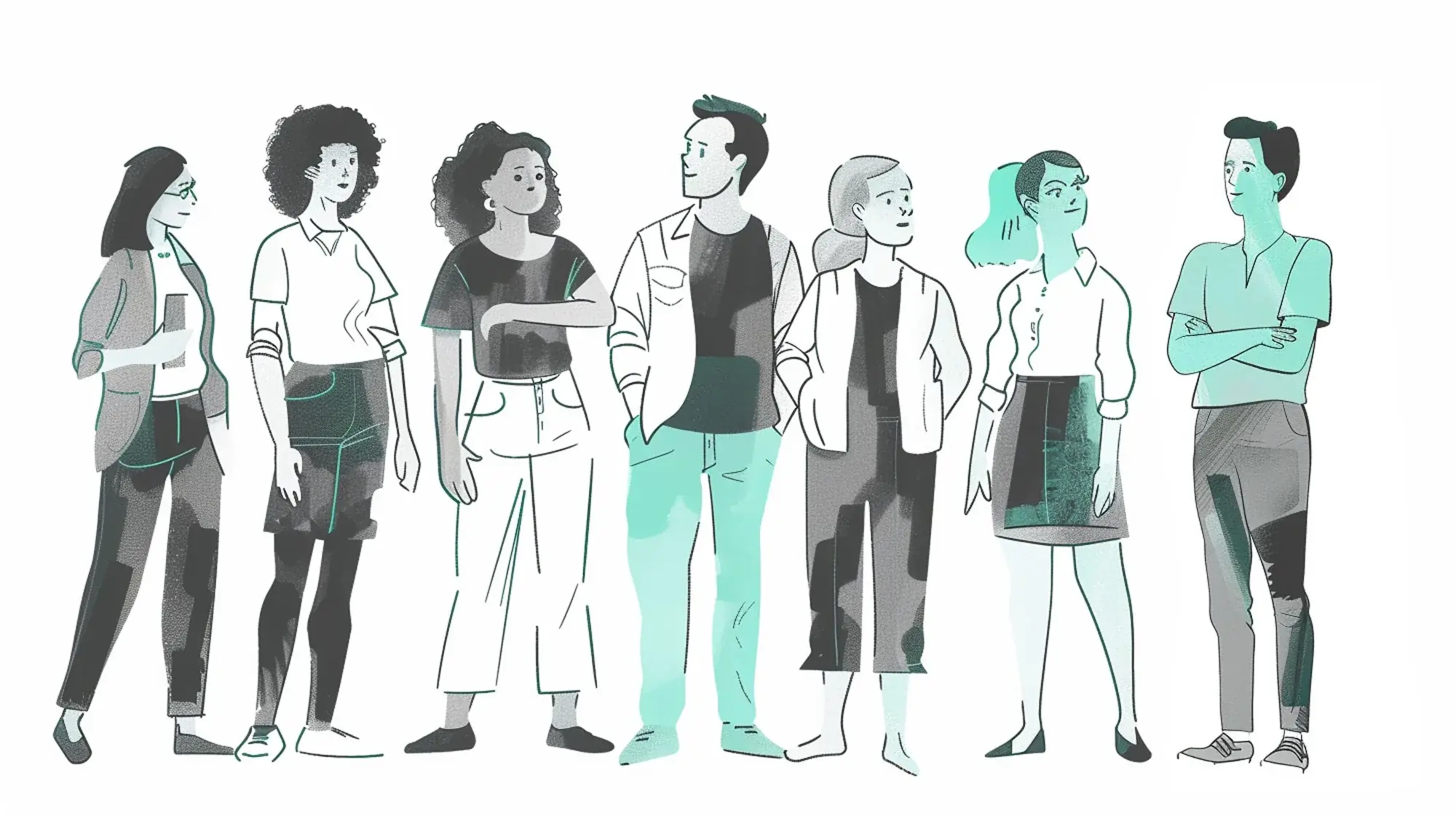
People are at the heart of every story, learning journey, and connection. The iSpring Suite Character Builder is a powerful cartoon maker tool — included with your iSpring licence — that lets you design diverse, visually appealing eLearning characters for scenarios, quizzes, and interactive role-plays.
The power of characters in eLearning
Characters in eLearning do more than add visual appeal — they help make content more engaging, relatable, and easier to remember. A well-designed character can support storytelling, guide learners through a course, and create a sense of connection. Small design choices can influence the learning experience in meaningful ways.
Universal principles of character design
Character psychology and personality
Characters that evoke emotions help build connections with learners. A well-designed character feels authentic. Character personalities must align with the intended learning experience, whether as a mentor, peer, or guide.
Key considerations:
- Authority vs. approachability: Design characters to match their role — trainers exude confidence, guides feel warm and inviting
- Consistency in design: Maintain alignment between facial features, attire, and expressions
- Emotional depth: Even simple avatars should express emotions like empathy, confidence, or excitement
- Implied backstory: Characters with a sense of history feel more authentic
- Cultural relevance: Ensure characters align with the audience’s cultural norms and values
- Learner validation: Test character designs with your target audience for feedback
- Tone and theme alignment: Match character style to the overall course tone
Anatomy and shape language
Simple shapes and body structures communicate emotions and roles at a glance:
- Rounded shapes convey friendliness and warmth
- Angular shapes suggest authority and structure
- Balanced, proportional anatomy improves credibility
- Dynamic poses make characters feel more engaging
Color psychology and contrast
Color choices shape perception, mood, and recognition. Since iSpring Cartoon Maker characters can be customized with brand colors, they can seamlessly fit into the overall learning experience.
- Brand integration: Use brand colors to create cohesive learning experiences
- Warm colors (reds, oranges, yellows) feel energetic and inviting
- Cool tones (blues, greens) create calm and trust
- High contrast improves visibility against different backgrounds
- Cultural color significance: Be aware that colors carry different meanings across cultures
- Role differentiation: Use distinct color palettes to distinguish character roles
Attitude, expression, and gesture
A character’s stance, gestures, and facial expressions communicate mood and personality at a glance.
Techniques to bring characters to life:
- Strong stances — a confident, upright pose conveys leadership
- Expressive gestures — open palms suggest warmth; closed postures imply defensiveness
- Facial expression nuances — subtle variations (raised eyebrows, slight smiles) add depth
- Speech bubbles — make it easy to reinforce key messages
- Onomatopoeia and symbols — visual cues like “Zzz” or exclamation marks enhance expressiveness
- Contextual positioning — placing characters near relevant content makes them feel more integrated
Flexibility and integration
Ways to make the most of iSpring’s character flexibility:
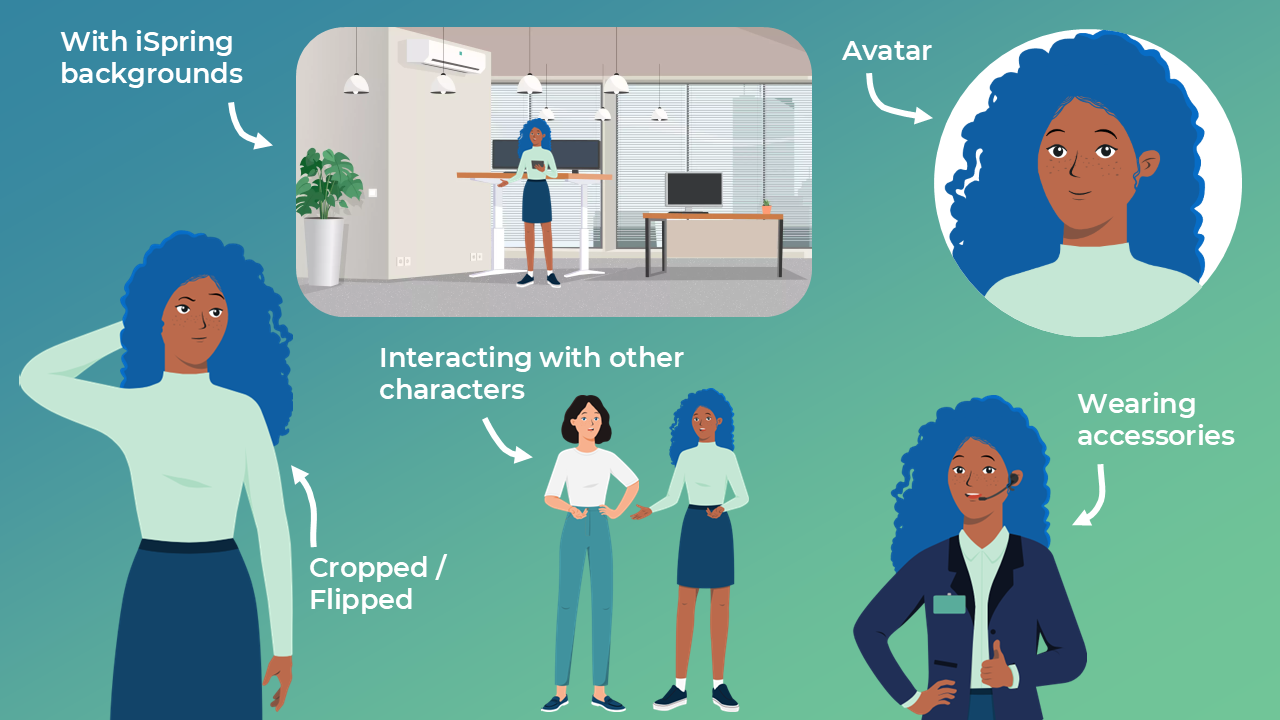
- Pre-made scenarios: Place characters in existing cartoon-style backgrounds for quick narratives
- Interactive elements: Use characters in quizzes, drag-and-drop interactions, and role-based learning
- Seamless PowerPoint integration: Position, resize, and layer characters with animations and transitions
- Cropping and adjustments: Fine-tune character framing for different layout needs
- Background adaptability: Swap or remove backgrounds to blend characters naturally into various settings
Putting it all together
The example below was submitted to the 2025 iSpring Instructional Design Contest — it demonstrates how characters created with the iSpring Cartoon Maker can be combined with backgrounds, interactions, and scenarios to create a complete, engaging learning experience.
Key Questions Answered
The most commonly asked questions about this topic, concisely answered.
- iSpring Cartoon Maker (also called the iSpring Character Builder) is a tool included with your iSpring Suite licence that lets you create custom, fully customizable cartoon characters for use in eLearning slides, quizzes, and branching scenarios. Characters can be adjusted for appearance, expression, pose, clothing, and brand colors.
- No. The Character Builder is included as part of the standard iSpring Suite and iSpring Suite Max licences — there is no separate purchase required. You access it directly from the iSpring tab inside Microsoft PowerPoint.
- You can customize a wide range of attributes including gender, skin tone, hair style and color, facial expressions, clothing, accessories, poses, and brand color palettes. Multiple expression and pose options are available per character, allowing you to convey different emotions across a scenario.
- Characters make content more relatable and support storytelling. They help guide learners through scenarios, personify roles such as mentor or peer, and create emotional connection — all of which improve engagement and knowledge retention. Well-designed characters also make abstract concepts feel more grounded in real-world situations.
- Rounded shapes convey warmth and approachability, while angular shapes suggest authority and structure. Color carries emotional meaning too — warm tones feel energetic and inviting; cool tones create calm and trust. Using brand colors in character clothing also makes courses feel visually cohesive.
- In the iSpring TalkMaster scenario builder, you assign characters to dialogue nodes, set their mood/expression for each line, and create branching paths based on learner choices. Characters appear alongside speech bubbles and react dynamically to the conversation flow, creating a realistic simulation experience.
- Yes. Characters exported from the builder can be placed as images directly on PowerPoint slides, in quiz feedback screens, and as part of interaction backgrounds. You can resize, crop, layer with animations, and swap backgrounds to integrate them naturally into any layout.
- Align character personality and attire with their role (trainer vs. peer)
- Ensure cultural relevance and diversity to reflect your learner audience
- Test character designs with a sample of your target learners before full production
- Use consistent expressions that match the tone of surrounding content
- Avoid generic or stereotypical portrayals
- iSpring Cartoon Maker is a static character builder integrated into PowerPoint — ideal for slide-based courses with still or lightly animated characters. Vyond and Powtoon are full animation platforms that produce video-style animated content. iSpring is faster and lower cost for teams already using iSpring Suite; Vyond offers more animation flexibility but at significantly higher cost.
- Yes. The Character Builder allows you to apply custom color palettes to clothing and accessories, making it straightforward to match characters to your organization's brand guidelines and create a cohesive visual identity across all course materials.
- Characters are primarily used within the iSpring/PowerPoint workflow as embedded objects. When published, they render as part of the HTML5 course output. You can also take screenshots or export slides as images (PNG/JPG) to reuse characters in other tools outside of iSpring.
- Custom characters create emotional connection, relatability, and narrative continuity across learning modules. Learners engage more deeply when guided by characters that reflect their own demographics, workplace environment, or professional context. Characters also enable scenario-based learning and role-play — making abstract concepts concrete through storytelling. Brand-aligned characters reinforce organizational identity in corporate training.
- iSpring's Cartoon Maker creates consistent, reusable characters that integrate seamlessly into the iSpring/PowerPoint workflow — ideal for scenario-based courses needing the same character across many slides and interactions. AI generators (Midjourney, DALL-E) produce more photorealistic or artistically varied characters but struggle with consistency across multiple scenes. For eLearning with recurring characters, iSpring's builder is more practical; for one-off illustrations, AI generators offer more creative range.